
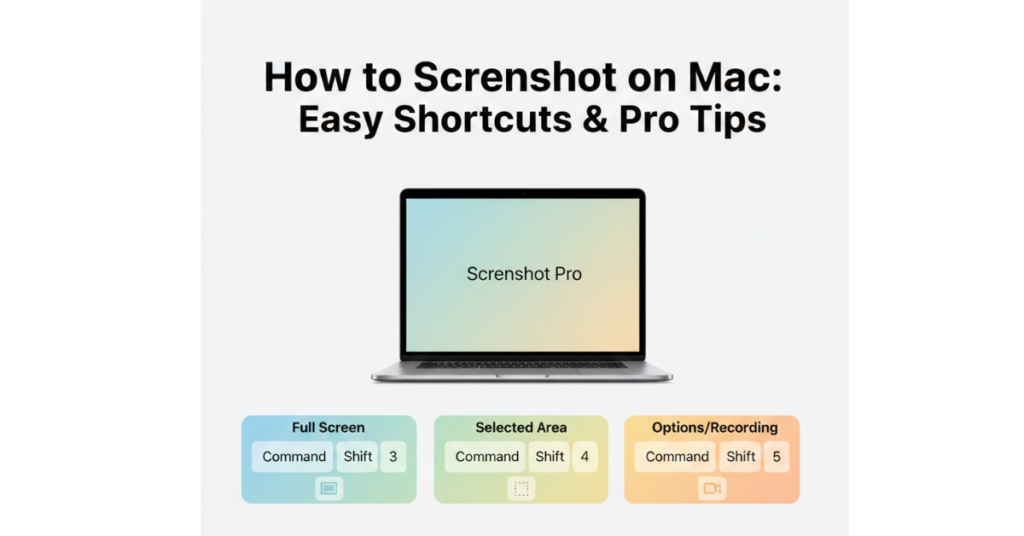

Taking a screenshot on a Mac is one of those skills you don’t realize you need—until you really need it. Whether you’re saving an online receipt, capturing an error message, or creating a tutorial, knowing how to screenshot on Mac can save you time and frustration.
In this guide, we’ll walk through every method for how to screenshot on a Mac computer, including shortcuts, built‑in tools, and how to screenshot on Mac and crop images easily. By the end, you’ll know exactly which option fits your workflow best.
Why Learning How to Screenshot on Mac Matters
Screenshots are more than quick snapshots. They’re essential for:
-
Work presentations and reports
-
Online tutorials and blog posts
-
Customer support and troubleshooting
-
Sharing visual instructions clearly
macOS offers multiple screenshot options, and once you learn them, they feel effortless.
How to Screenshot on Mac Using Keyboard Shortcuts Fastest Way
Keyboard shortcuts are the quickest and most popular way to take screenshots on a Mac.
: Screenshot the Entire Screen
Shortcut:
Command (⌘) + Shift + 3
What happens:
-
Captures your full screen instantly
-
Saves the image to your desktop by default
This method is ideal when you need everything visible on your screen.
: Screenshot a Selected Portion of the Screen
Shortcut:
Command (⌘) + Shift + 4
Steps:
-
Your cursor turns into a crosshair
-
Click and drag to select the area
-
Release to capture
This is perfect if you want to focus on a specific section and avoid extra clutter.
: Screenshot a Specific Window or Menu
After pressing Command + Shift + 4:
-
Press the Spacebar
-
Click the window or menu you want to capture
macOS automatically adds a clean shadow around the window for a polished look.
How to Screenshot on Mac and Crop Instantly
If cropping is your priority, macOS makes it incredibly easy.
: Use Screenshot Preview for Quick Cropping
After taking a screenshot:
-
A thumbnail appears in the bottom‑right corner
-
Click it before it disappears
From there, you can:
-
Crop the image
-
Add text or shapes
-
Highlight important areas
-
Save or share instantly
This built‑in editor removes the need for third‑party apps.
Using the Screenshot Toolbar on Mac All‑in‑One Tool
: How to Screenshot on Mac Computer with the Screenshot Toolbar
Shortcut:
Command (⌘) + Shift + 5
This opens the Screenshot Toolbar, which lets you:
-
Capture the entire screen
-
Capture a selected window
-
Capture a selected portion
-
Record your screen (video)
You can also choose:
-
Where screenshots are saved
-
Timer options
-
Whether to show the mouse cursor
This is the most flexible method for power users.
Where Do Screenshots Go on a Mac?
By default, screenshots are saved to:
-
Desktop
To change the save location:
-
Press Command + Shift + 5
-
Click Options
-
Select a new folder (Documents, Clipboard, etc.)
Advanced Tips for Better Mac Screenshots
Here are a few pro‑level tricks most users miss:
-
Copy to clipboard: Hold Control while taking a screenshot
-
Rename automatically: Change default names using Terminal
-
Disable shadows: Useful for clean UI screenshots
-
Use Preview app: Open any screenshot for advanced cropping and annotations
These small tweaks can significantly improve your workflow.
FAQs: How to Screenshot on Mac
How do I take a screenshot on a Mac without saving it?
Hold Control while using any screenshot shortcut. The image is copied to your clipboard instead of being saved.
Can I screenshot on Mac and crop later?
Yes. Open the screenshot in Preview or click the thumbnail to crop immediately.
How do I screenshot a Touch Bar on MacBook Pro?
Press Command + Shift + 6 to capture the Touch Bar.
What’s the best way to screenshot on a Mac computer for tutorials?
Use Command + Shift + 5 to combine screenshots and screen recordings with precise control.
Do screenshots reduce image quality on Mac?
No. macOS captures screenshots at full screen resolution by default.
Conclusion: Mastering How to Screenshot on Mac
Now that you know how to screenshot on Mac, you can capture, crop, edit, and share images effortlessly. Whether you prefer keyboard shortcuts or the Screenshot Toolbar, macOS gives you powerful tools without extra software.